
Recently I setup Bing Product ads for a client and was blown away by the performance. Conversions at 1/6 cost of Google Shopping! If you use Google Shopping in the US, and you’re not currently running Bing product ads, I recommend you test them out. Naturally your performance will vary based upon the niche, but you don’t know until you try.
Setting up product ads using Shopify is another post for another day.
One issue I did run into was setting up Bing revenue tracking.
In order to measure performance for eCommerce I highly recommend using the Conv. value / cost metric. This gives you a ratio for return on ad spend (e.g. $5 return for every $1 spent). For stores selling products with disparate price tags, this trumps CPA data. A $20 CPA may sound great, until you realise that many of your conversions are for $20 items!
To use this metric, you of course need to be tracking conv. value, or as they call it on the Bing platform, revenue.
Setup
Previously on Bing you would track conversions using Campaign Analytics (nested under the Tools link):
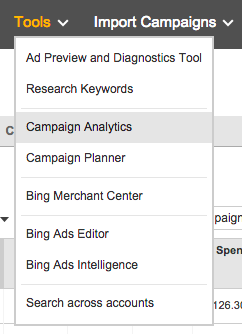
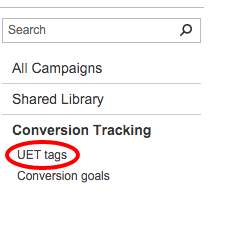
However, since they’ve removed this functionality in favour of Universal Event Tracking (UET), that’s where we’ll be heading. You can find the option under the Shared Library link on the left. Then select UET tags:
Then choose to create your UET Tag:
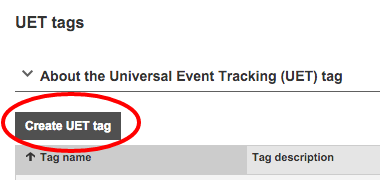
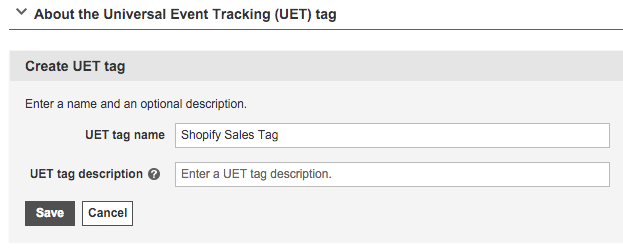
At this point Bing will provide the code you want to add to your Shopify checkout page:
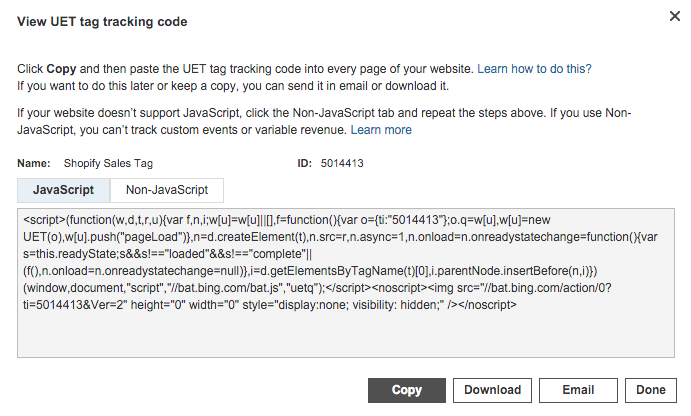
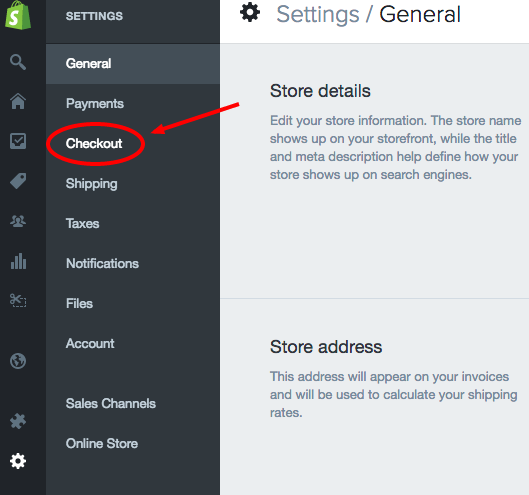
Copy your version of the above code, and then we’ll place it into Shopify. The checkout code page can be found under Settings > Checkout
Then scroll down to:
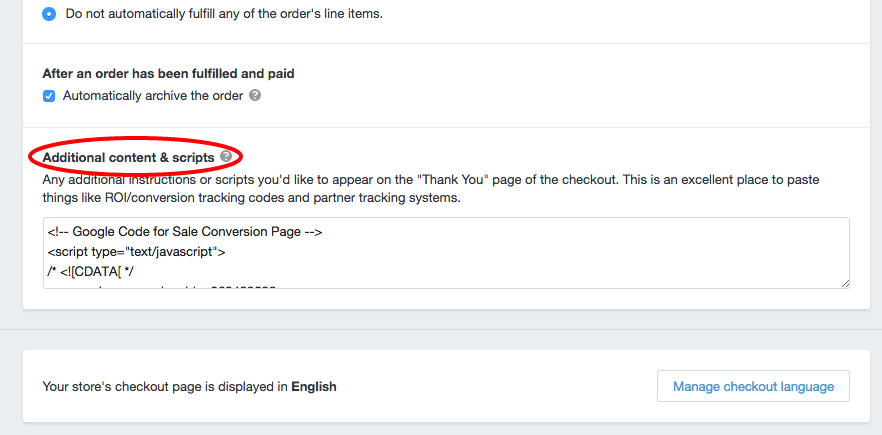
Then paste your tag:

Next we need to add for revenue tracking. This is in fact the same for everyone (assuming you have a Shopify store!).
In the same box we just pasted the above tag code, below it, use either of the following codes (not both!):
To exclude taxes and shipping:
<!-- Bing - Passing Sales Value -->
<script>
   window.uetq = window.uetq || [];
   window.uetq.push({ 'revenue_value': {{ subtotal_price | money_without_currency }}, 'currency': '{{ shop.currency }}' });
</script>
To include taxes and shipping:
<!-- Bing - Passing Sales Value -->
<script>
   window.uetq = window.uetq || [];
   window.uetq.push({ 'revenue_value': {{ total_price | money_without_currency }}, 'currency': '{{ shop.currency }}' });
</script>
Specifically what this snippet of code does is to insert the checkout total, and then pass that to Bing, who link it up with the conversion tracking tag.
Now that’s done, we want to setup a goal. Go to the Conversion Goals Page:
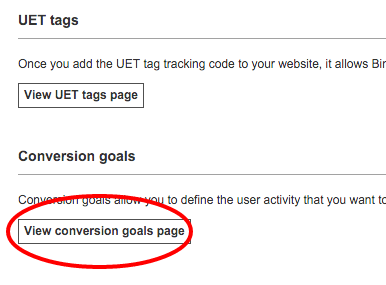
Then choose to create a new conversion goal:
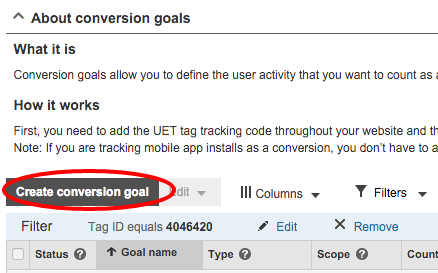
Here you want to select the Destination URL option:
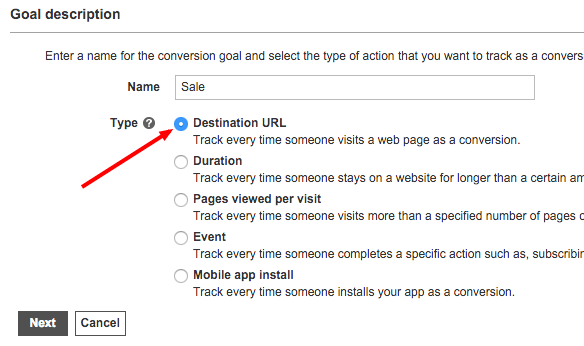
On the next page you want to use the following options:
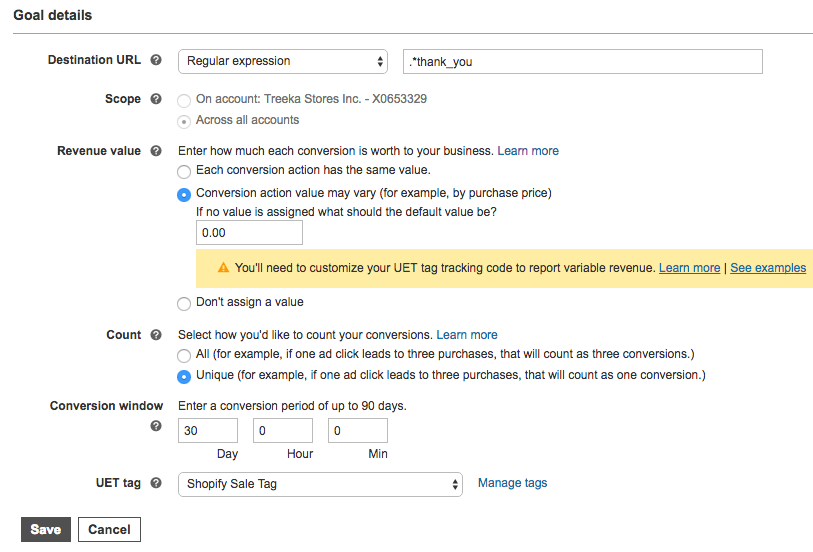
By using regular expressions, we can tell the goal to fire when someone reaches our checkout page.
Use the regular expression:
.*thank_you
Also, I should re-iterate to choose Count = Unique if you’re using Shopify. I ran into a lot of duplicate Bing conversions for my Shopify store, and decided to switch to unique to minimalise this. If you really want to keep the Count = All setting, then definitely make sure to surround your checkout code with “run once” code.
So, we’ve setup the UET tag, then setup a goal (for our checkout page), and linked the UET tag to that goal.
At this point you will have all the necessary Bing tracking code on your Shopify checkout page. And you can expect conversions and revenue figures to start appearing in your Bing dashboard.
One last step is to make sure you surround the code we’ve just created with Shopify’s “Run Once” command. This is because the order confirmation page doubles in utility as a place where people can check their order status. And thus, if they refresh it, it could trigger our code to run multiple times. Shopify’s snippet looks like:
{% if first_time_accessed %}
  <!-- Conversion scripts you want to run only once -->
{% endif %}

<!-- Scripts you want to run on every visit -->
More details on how that works at Shopify’s help page on the subject.
I hope that helps with the setup process. If you have any questions do leave a comment and I’ll get back to you.
PSA: Since writing this – Bing have an updated guide for how to track conversions with Shopify – link.


Leave a Reply